


If you’ve ever installed an SEO plugin, stared at a wall of toggles, and thought “right, nope, closing this tab”, this guide is for you.
SEO used to be a fairly simple game: write good content, get a few backlinks, keep Google happy. Today, there’s a new player at the table. People aren’t just Googling things anymore. They’re asking ChatGPT, Gemini, Perplexity and Google’s own AI Overviews for answers directly. That’s called AEO, which stands for Answer Engine Optimisation (sometimes called AI SEO) and it means optimising your content so AI tools can find it, understand it, and actually mention or cite you as a source.
The good news? You don’t need ten different plugins and a computer science degree to do this. Rank Math, one of the most popular WordPress SEO plugins around, handles both traditional SEO and the newer AEO side of things which are sitemaps, schema, analytics, llms.txt, the lot, all from one dashboard.
This guide walks you through setting it up from scratch, understanding what everything actually does, and building a simple routine to keep your content optimised for both search engines and AI models. No jargon overload, promise.
Table of Contents
1. Setting Up Rank Math with the Setup Wizard
Before you even begin editing a single blog post, ensure that Rank Math is properly configured. Once you get this aspect right, everything downstream, including sitemaps, schema, and meta tags, will function seamlessly.
Step 1: Install and Connect Your Account
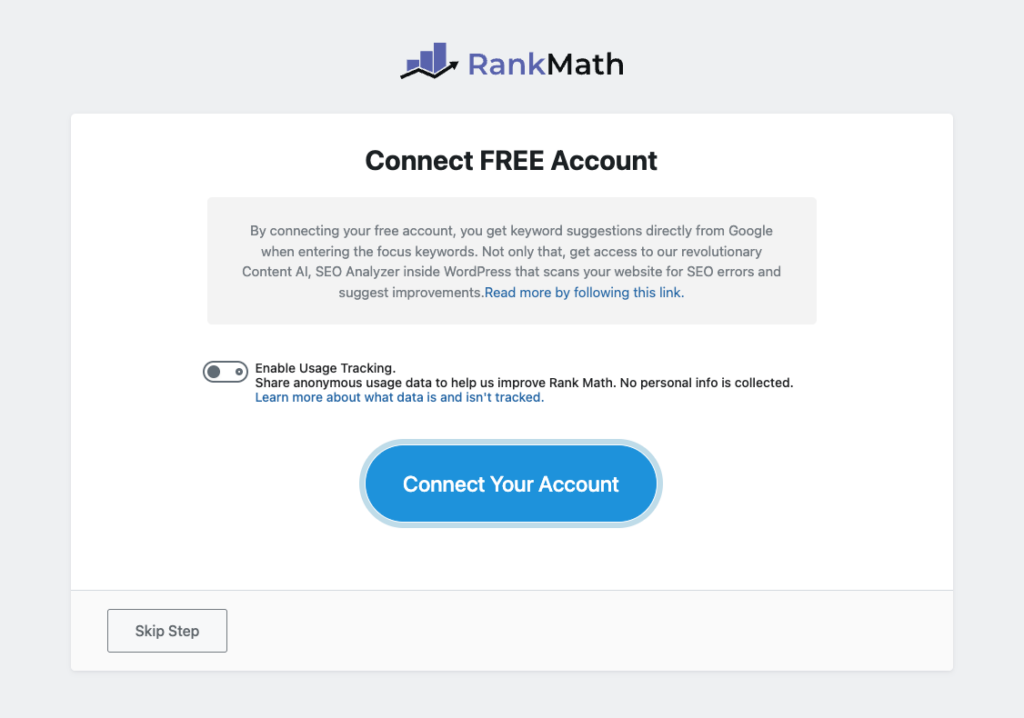
Head to your WordPress dashboard, install Rank Math, and activate it. On first launch, you’ll be prompted to connect a free Rank Math account. Do it and this unlocks keyword suggestions, Google Trends data, and the Analytics module later on.
Step 2: Choose Easy or Advanced Mode
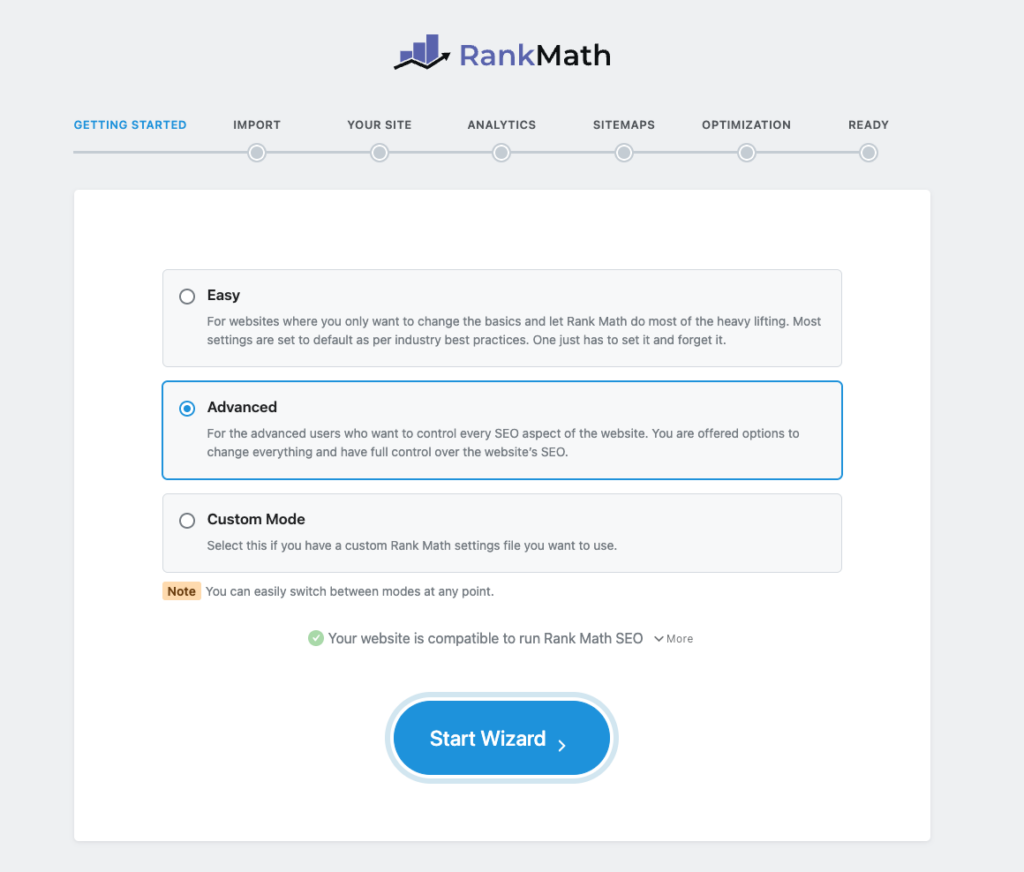
Rank Math will ask if you want Easy Mode or Advanced Mode. If this is your first rodeo, start with Easy as you can always switch later without losing anything. Advanced Mode simply unlocks a few extra steps for people who want more control from day one.
Step 3: Import Data (If You’re Migrating)
If you’re switching from Yoast, AIOSEO, or another plugin, Rank Math will offer to import your existing titles, meta descriptions and redirects. Click Start Import and let it do its thing. This saves you from redoing years of SEO work by hand.
Step 4: Tell Rank Math What Your Site Is
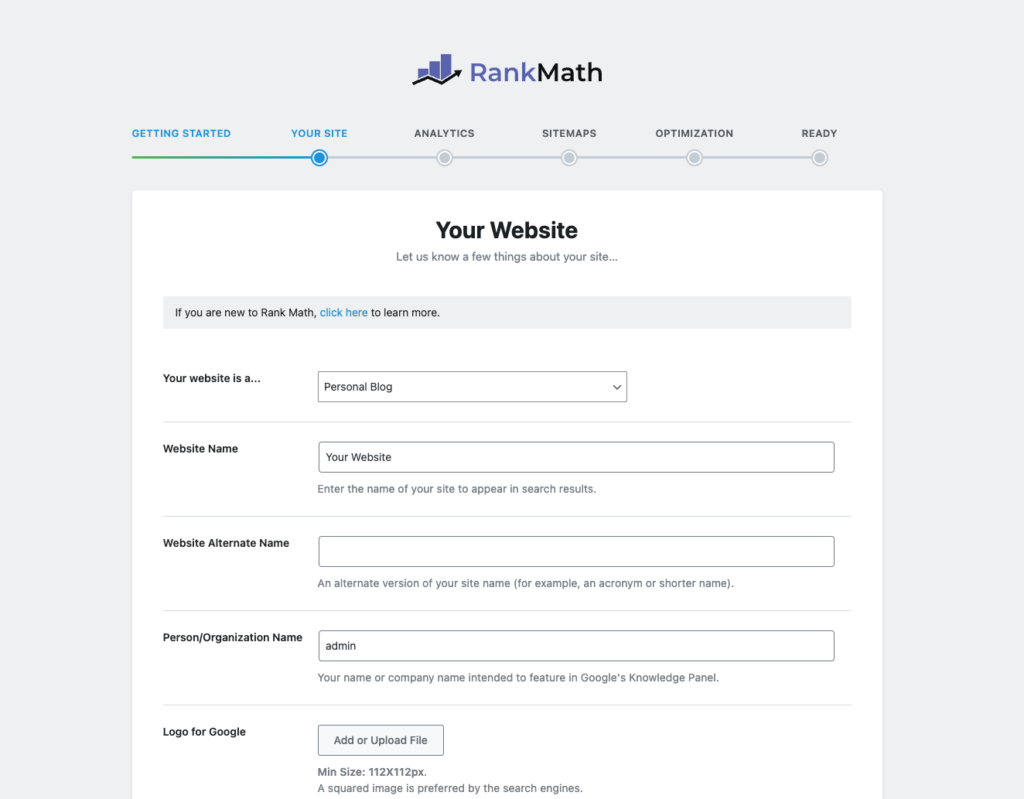
This is the “Your Site” step. You’ll pick whether you’re a personal blog, business, or something else, add your site name, logo, and a default social sharing image. This information gets baked into your site’s structured data, so Google understands what your website actually is. A huge help for both classic SEO and AI tools trying to summarise your site.
Step 5: Connect Analytics and Search Console
This is arguably the most important step in the whole wizard, so don’t skip it. Click Connect Google Services and grant the permissions. This links Rank Math to Google Search Console and Google Analytics, and it will automatically verify your site and submit your sitemap for you. One click, two jobs done.
We’ll dig into what all this analytics data actually means in the next section.
Step 6: Configure Your Sitemap
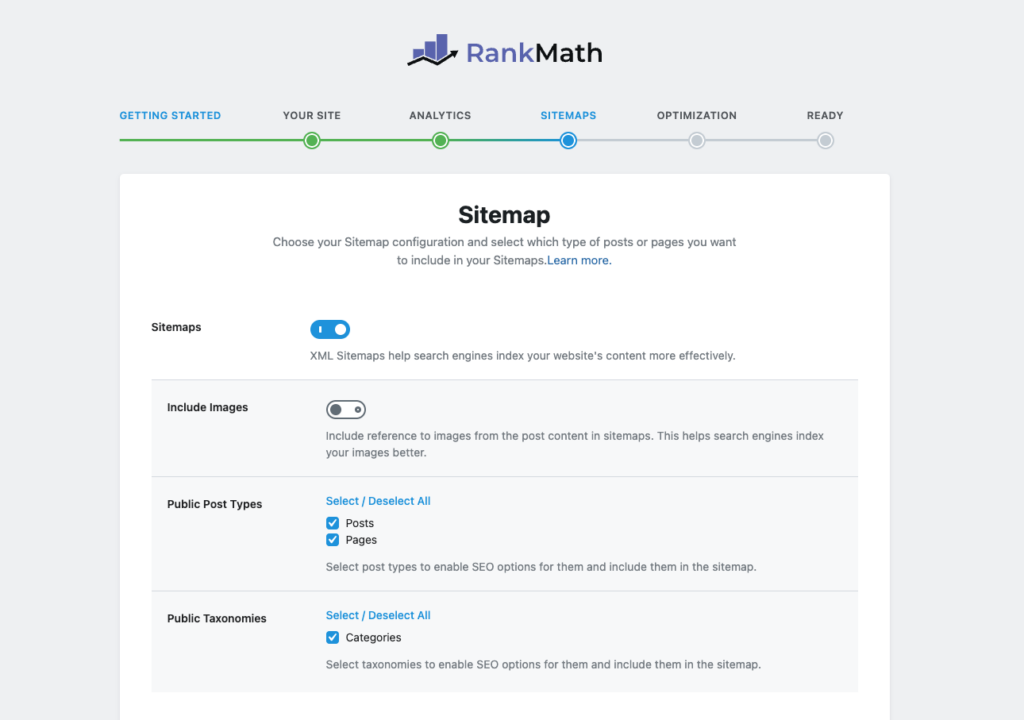
Leave sitemaps switched on (they’re on by default) and keep “Include Images” enabled unless you’ve got thousands of images and a very tight server. Select which post types (Posts, Pages, and any custom post types like Tools if you’ve built one) should be included.
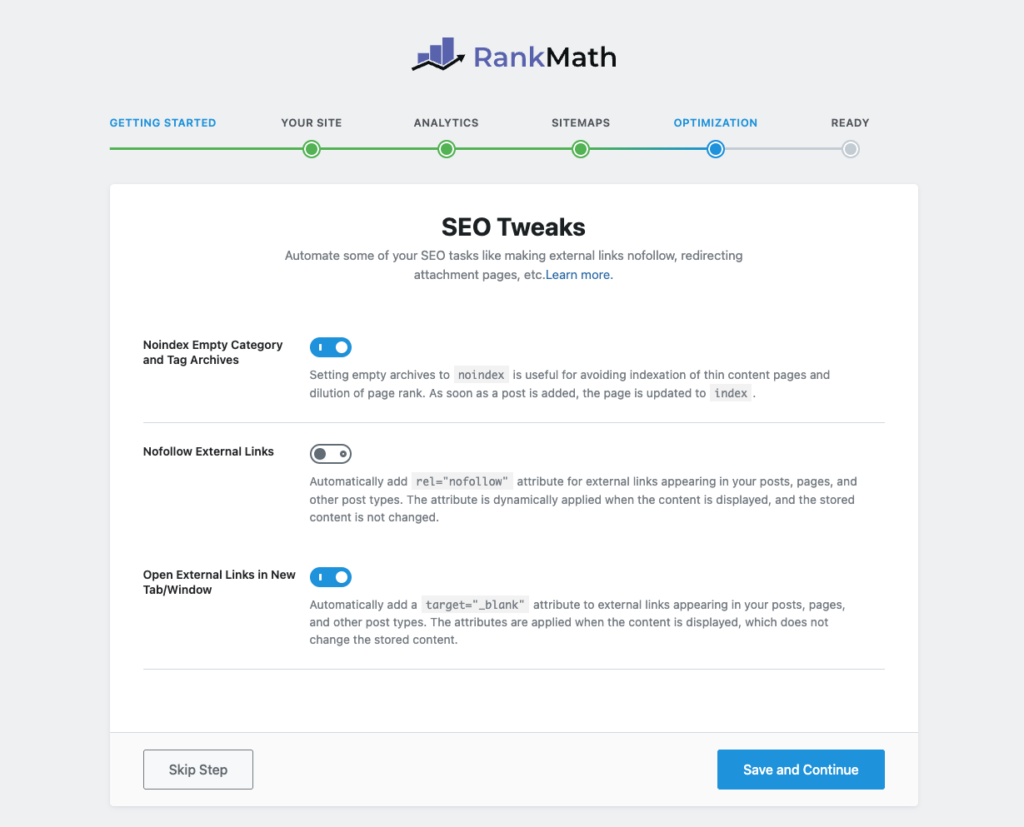
Step 7: Quick SEO Tweaks
Three toggles worth turning on here:
- No-index empty category/tag archives — stops Google wasting crawl budget on empty pages.
- Nofollow external links — saves you manually adding
rel="nofollow"every time you link out. - Open external links in a new tab — keeps visitors on your site for longer.
Step 8: Finish Up
Click through the Ready step, turn on auto-updates (Google’s algorithm changes constantly so you want the latest version of Rank Math protecting you), and you’re done. Setup takes about five minutes, and you’ve just laid the entire foundation your site’s SEO will sit on.
2. Making the Most of Rank Math Analytics
Here’s the thing nobody tells beginners: “you cannot improve what you don’t measure”. You could publish the best blog post in the world, but if you’re not watching how it performs, you have no idea whether to write more like it or completely change tack.
Rank Math’s Analytics module pulls data from Google Search Console and Google Analytics and displays it right inside your WordPress dashboard so no more logging into three different tools every morning.
What You’ll Actually See
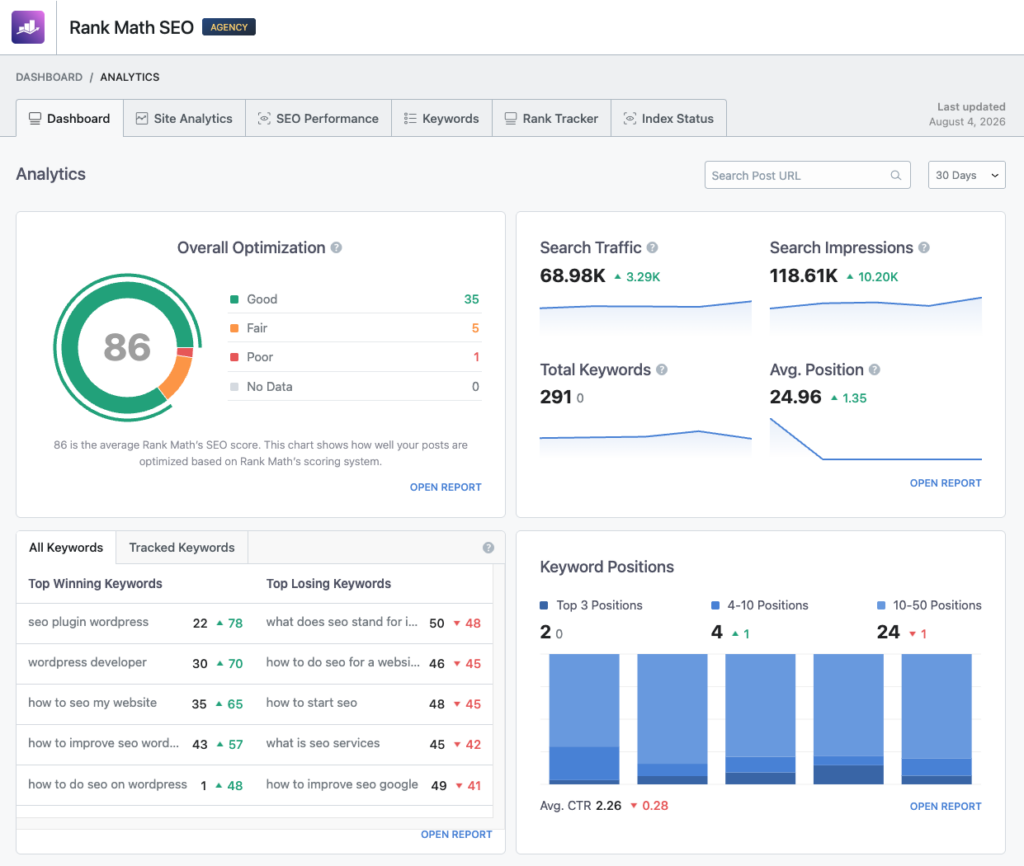
Once connected (Rank Math SEO → Analytics), you get:
- SEO Performance Overview — your total impressions, clicks, ranking keywords, and average position, all on one simple line graph.
- Overall Optimisation Score — a bird’s-eye view of how well-optimised your entire site is, broken into good/fair/poor buckets.
- Keyword Positions — a snapshot of how many posts rank in the top 3, top 10, and top 50 for their target terms.
- Top Winning & Losing Posts — which content is climbing the rankings, and which is quietly sliding down (a great early-warning system).
- Index Status — shows you exactly which pages Google has indexed, and flags any that are stuck, excluded, or blocked.
Why This Actually Matters
Analytics isn’t just a vanity dashboard, it’s your decision-making tool. If a post is winning (climbing positions, gaining clicks), that’s a signal to update it, add more depth, or build an internal link to it from newer posts. If a post is losing, it might need a content refresh, a better title, or simply isn’t matching what people are actually searching for anymore.
Practical tip: Check your Analytics dashboard once a week, not every day. SEO is slow so daily checking just leads to stress over noise. A weekly glance at your winning/losing posts is plenty to steer your content strategy.
3. Making Sure Search Engines and AI Can Actually See You
This is where the “AEO” part of this guide really kicks in. Think of it this way: search engines and AI models can’t read your website the way a human does. They rely on a handful of technical files to understand what exists on your site and what they’re allowed to do with it. Get these wrong, and it doesn’t matter how brilliant your writing is, nobody (human or robot) will ever find it.
There are three files every website owner should know about:
3.1 The XML Sitemap (yoursite.com/sitemap_index.xml)
Think of your sitemap as the index page of a book — it tells search engines every page that exists on your site, so they don’t have to guess or stumble across it by chance.
Rank Math builds this automatically. You’ll find your settings under Rank Math SEO → Sitemap Settings, where you choose which post types, pages, and taxonomies to include.
A couple of quick best practices:
- Keep only the content you actually want indexed in your sitemap (skip empty categories/tags).
- Make sure the
<lastmod>tag is present. Rank Math handles this for you, and it tells search engines how fresh your content is, which affects how often they bother re-crawling it. - Once configured, submit it to Google Search Console. If you connected Analytics in Step 5 above, Rank Math has already done this for you automatically. If not, it takes 30 seconds: log into Search Console, go to Sitemaps, and paste in
sitemap_index.xml.
3.2 Robots.txt (yoursite.com/robots.txt)
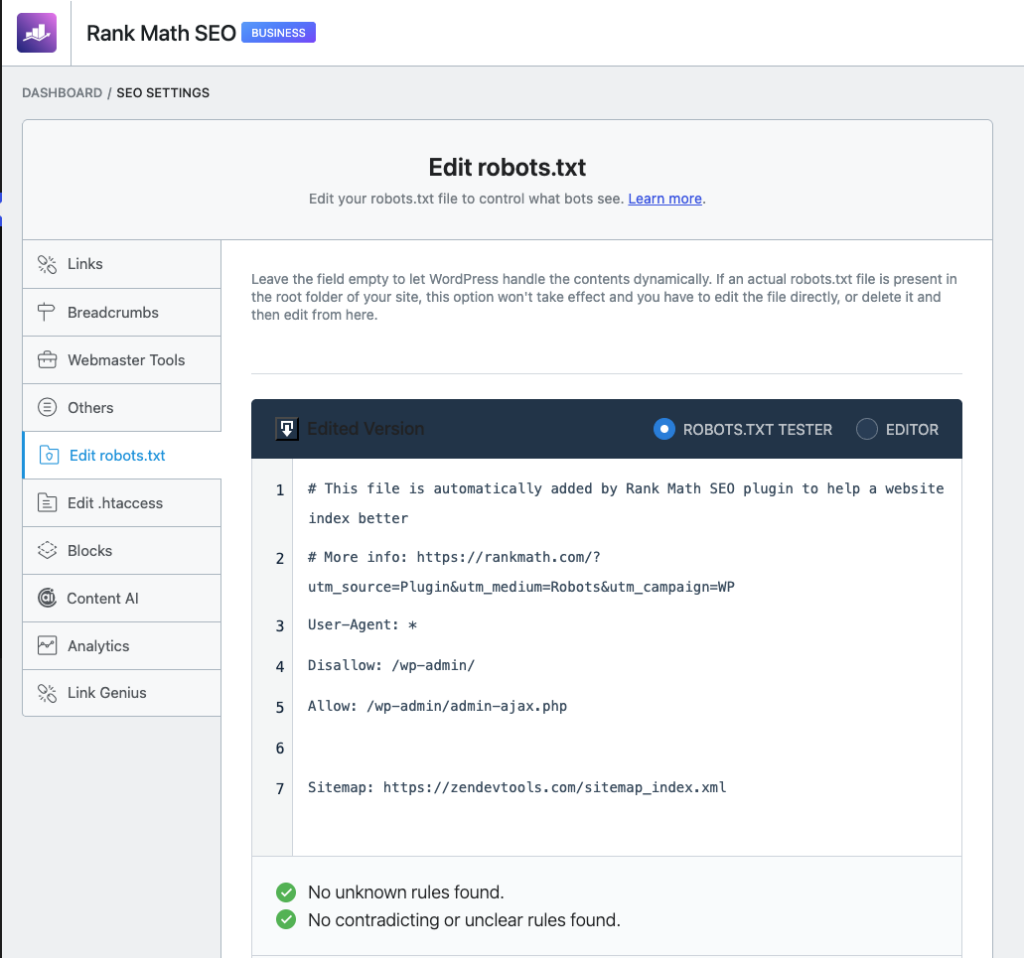
If the sitemap is your book’s index, robots.txt is the “staff only” sign on certain doors. It’s a simple text file that tells search engine crawlers which parts of your site they can and can’t access, things like your WordPress admin folder, for example.
Rank Math automatically generates a sensible default robots.txt file for you. You can view or edit it under Rank Math SEO → General Settings → Edit robots.txt. Most beginners never need to touch this. Just make sure it exists and isn’t accidentally blocking your entire site (this happens more often than you’d think, especially on sites migrated from staging servers).
3.3 llms.txt — The New One (yoursite.com/llms.txt)
Here’s the file most SEO guides from a couple of years ago won’t even mention, because it’s brand new: llms.txt.
Search engines crawl your entire site methodically, page by page, on a schedule. AI chatbots don’t work that way and when someone asks ChatGPT or Gemini a question, the AI only scans small, relevant slices of the web in real time to build its answer. That means it can easily miss your best content, misread context, or grab outdated information.
llms.txt fixes this by giving AI models a clean, curated map of your best content. Written in plain Markdown, sitting at the root of your site. Think of it as a highlight reel you hand directly to the AI instead of hoping it stumbles onto the right page on its own.
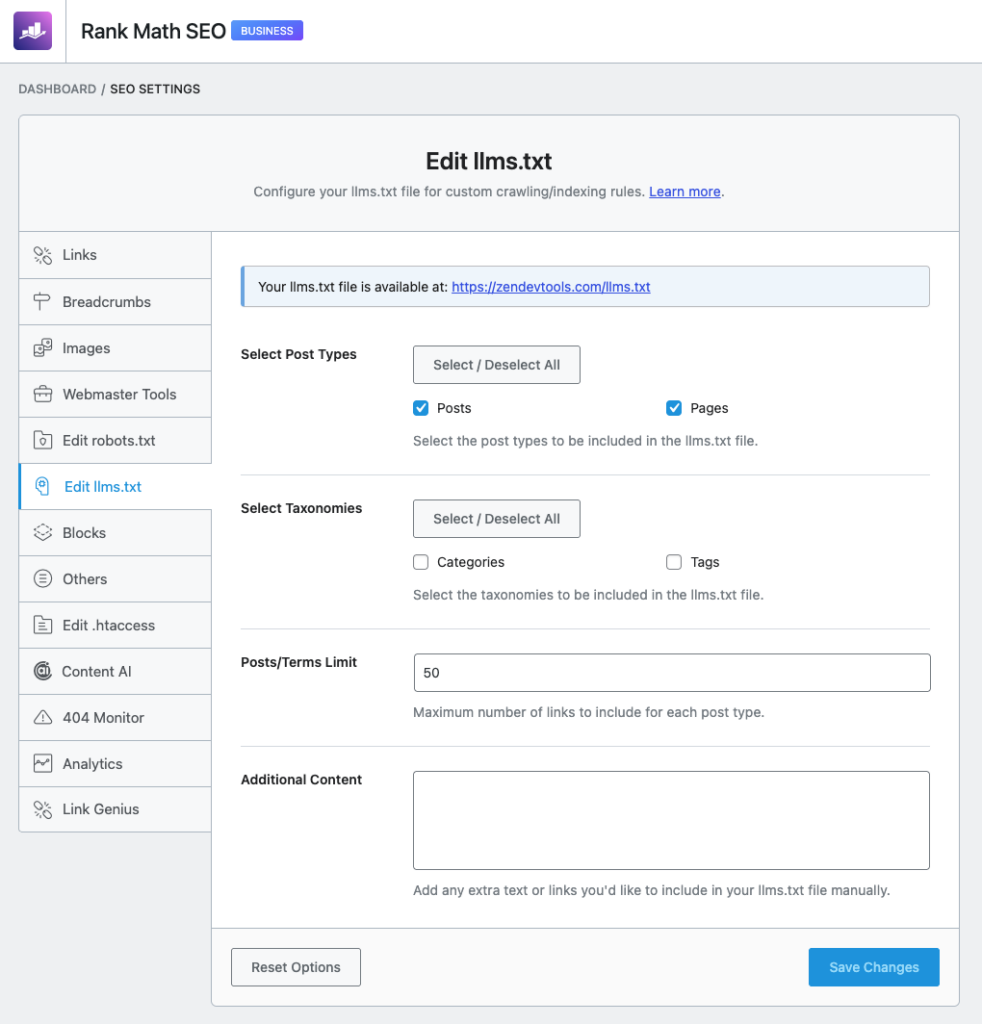
To set it up in Rank Math:
- Go to Rank Math SEO → Dashboard → Modules and enable the LLMS Txt module.
- Head to General Settings → Edit llms.txt.
- Choose which post types (posts, pages, tools) and taxonomies (categories, tags) to include.
- Set a limit on how many items to list (100 is the default — fine for most blogs).
- Optionally, add custom notes or extra links in the “Additional Content” box.
- Save, then preview it at
yoursite.com/llms.txtto check it looks right.
Worth knowing: llms.txt is still a proposed standard, not an official one, and not every AI platform reads it yet. But adoption is growing fast, and since it takes five minutes to set up in Rank Math, there’s really no reason not to have it ready.
4. Local SEO: Do You Even Need It?
Quick one, this section, because for a lot of you reading this, the honest answer is no, skip it.
Rank Math’s Local SEO module is designed for businesses with a physical presence. Think dentists, restaurants, law firms, shops, anywhere people search “best [thing] near me.” It adds structured data about your address, opening hours, phone number and service area so Google can show you in local map results and the “local pack.”
If you run a personal blog, an online tool, a SaaS product, or anything else without a physical shopfront customers visit, you genuinely don’t need this module switched on. Rank Math even says so itself. If you’ve followed the general setup correctly, you shouldn’t see the Local SEO section unless it’s relevant.
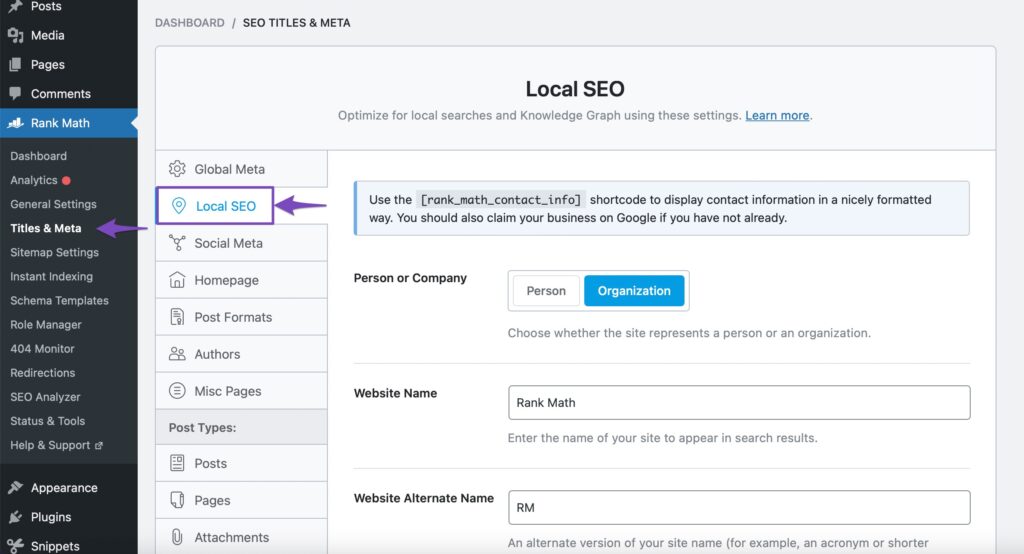
If you do run a local business, it’s absolutely worth configuring: claim your Google Business Profile first, then head to Rank Math SEO → Titles & Meta → Local SEO to add your business type, address, hours and contact details. This tells Google exactly who you are and where, which is a major ranking factor for anything location-based.
5. Schema Markup, Explained Without the Headache
Schema sounds intimidating, but the concept is dead simple: it’s extra code you add to a page that tells search engines (and increasingly, AI models) exactly what kind of content they’re looking at.
Without schema, Google sees a wall of text and has to guess whether it’s a recipe, a product review, a how-to guide, or a news article. With schema, you’re basically handing it a label. That label is also what unlocks the good stuff in search results such as star ratings, FAQ dropdowns, recipe cook times, “how-to” step cards, all the eye-catching bits that make your result stand out and get clicked.
Why It Matters for AEO Too
This is the part that ties everything together: AI models rely heavily on structured data to quickly understand and summarise a page without having to “read” the whole thing. A well-schema’d page is simply easier for an AI to correctly extract facts from, quote, or cite which matters a lot if you want to show up when someone asks an AI chatbot a question your content answers.
Setting It Up in Rank Math
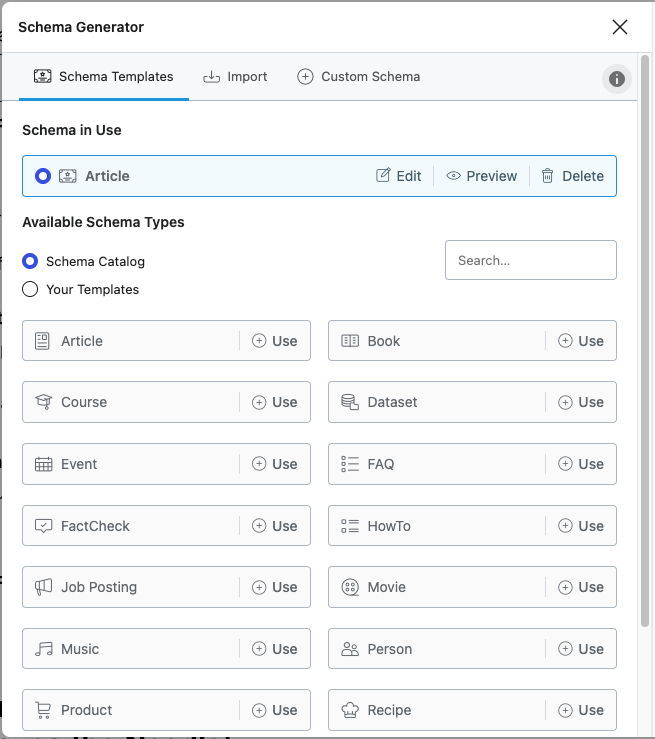
Open any post or page in the block editor, click the Rank Math icon in the sidebar, and go to the Schema tab. You’ll see a library of ready-made schema types to choose from:
- Article / BlogPosting — for standard blog content
- FAQ — if your post answers common questions (brilliant for AEO — this is exactly the format AI answer engines love to lift from)
- HowTo — perfect for step-by-step tutorials, like this very guide
- Product / Software Application — great if you’re showcasing a tool, app, or downloadable product
- and many more!
Pick the type that matches your content, fill in the fields Rank Math asks for, and save. That’s it! No manual code required.
Quick tip: You can also set a default schema type for each post type (all blog posts, all pages, etc.) under Rank Math SEO → Titles & Meta, so you’re not doing this manually every single time.
6. Optimising Your Content (The Bit That Actually Moves the Needle)
Everything up to this point has been technical foundation, necessary, but invisible. This section is where the actual writing happens, and where Rank Math genuinely shines.
6.1 Run the SEO Analyzer First
Before you optimise individual posts, get a whole-site health check. Go to Rank Math SEO → SEO Analyzer and click Start SEO Analyzer. In a few seconds, you’ll get a full breakdown of:
- Basic SEO — title tags, meta descriptions, H1/H2 usage, permalink structure
- Advanced SEO — canonical tags, Open Graph data, robots.txt, sitemap presence
- Performance — page size, minification, server response time
- Security — SSL, exposed plugin/theme names, directory listing
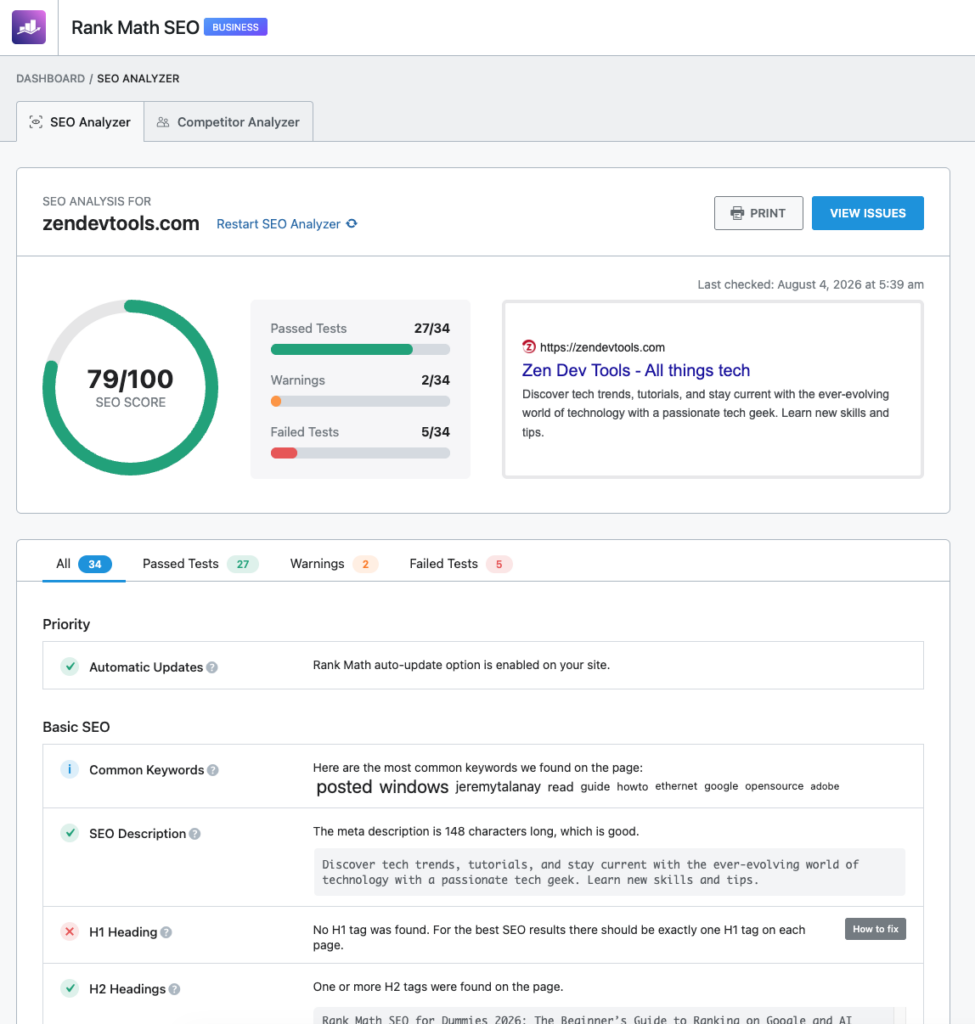
Every failed or warned test comes with a plain-English explanation of what’s wrong and how to fix it. Run this monthly as it’s the fastest way to catch problems (like an accidentally-noindexed homepage, or a missing SSL redirect) before they quietly tank your traffic.
6.2 Optimise Every Post Individually and score 100/100
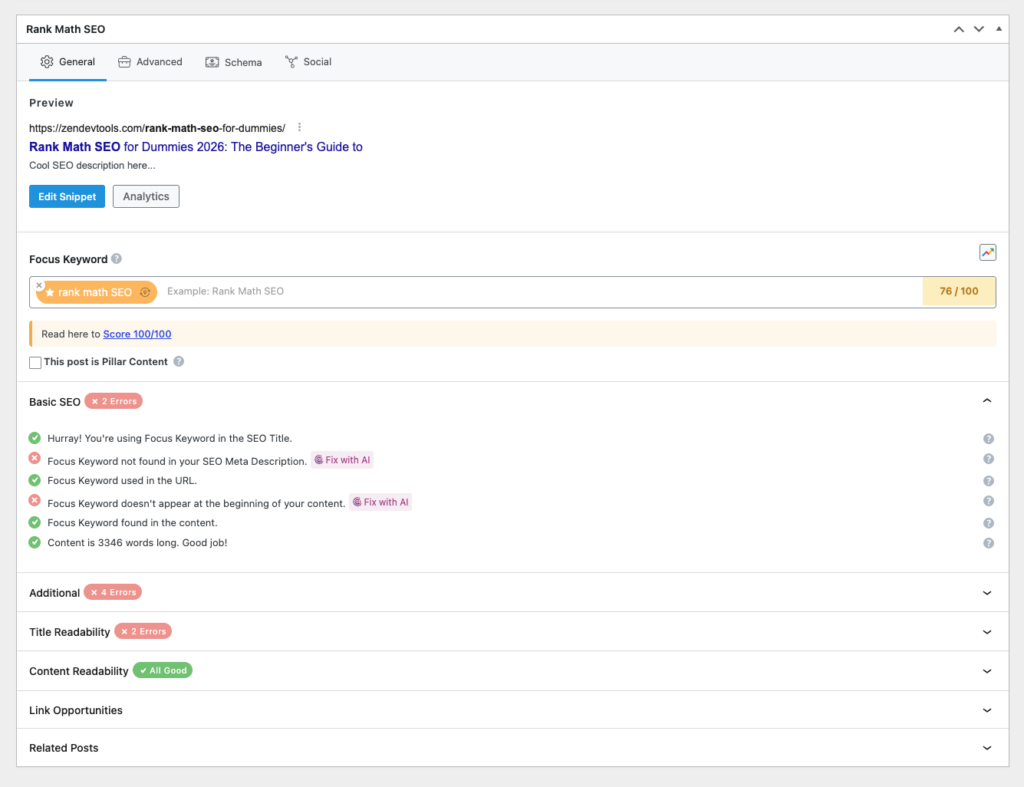
This is Rank Math’s signature feature, and it’s genuinely brilliant for beginners. Every time you write or edit a post, Rank Math scores it out of 100 in real time and tells you exactly what to fix.
How it works, step by step:
- Set a focus keyword. This is the main term you want the post to rank for — for example, “rank math tutorial.” Rank Math will pull in Google-suggested related keywords once your account is connected.
- Watch the traffic-light system. Every recommendation gets a green tick (passed), yellow (needs attention), or red cross (fix urgently). Your goal is turning everything green.
- Work through the four test categories:
- Basic SEO — focus keyword in your title, meta description, URL, and the first 10% of your content.
- Additional SEO — keyword in subheadings, image alt text, healthy keyword density (1–1.5%, don’t overdo it), internal and external links.
- Title Readability — keyword near the start of the title, a number, a “power word,” and some sentiment/emotion to boost click-through rate.
- Content Readability — a table of contents for longer posts, short paragraphs (under 120 words), and at least one image or video.
A genuinely important reminder: a 100/100 score doesn’t guarantee a page-one ranking — competition, domain authority and dozens of other factors are outside Rank Math’s control. Treat the score as a quality framework, not a magic ranking button. Also, never sacrifice readability for a green tick — you’re writing for humans first, algorithms second.
6.3 Let AI Help You Get There Faster (Content AI)
Once you understand what Rank Math wants from a well-optimised post, you can speed the whole process up dramatically with Content AI which is Rank Math’s built-in AI writing assistant.
It’s not a separate plugin; it lives right inside your existing Rank Math dashboard, and it’s genuinely one of the more useful applications of AI in SEO because it’s purpose-built around passing those exact 100/100 tests, rather than being a generic writing tool bolted on afterwards.
Some of the most useful bits:
- Fix with AI buttons — appear directly next to failed SEO tests (like “focus keyword missing from the first paragraph” or “paragraph too long”). One click, and Content AI rewrites just that part.
- Blog Post Wizard — generates a full structured draft (outline, intro, body, conclusion) from a single topic prompt.
- AI-generated alt text — brilliant if you’ve got a backlog of old images with no alt tags, which is one of the most common things people fail the SEO Analyzer on.
- SEO Meta & Open Graph generation — write optimised titles and descriptions in bulk, instead of one post at a time.
Should you pay for it? The free tier gives you a small taste, but Content AI is genuinely built to be used with a paid subscription if you’re publishing regularly. The per-tool usage limits on the free plan get used up fast. If you’re serious about consistent content output, it’s worth the modest monthly cost, especially compared to the hours it saves versus manually working through every recommendation.
7. Your Quick-Reference Checklist
Bookmark this bit. Whenever you publish something new, run through it:
One-time setup (do this once, ever):
- [ ] Rank Math installed and account connected
- [ ] Setup Wizard completed (site details, sitemap, optimisation tweaks)
- [ ] Google Search Console + Analytics connected
- [ ] Sitemap submitted (
sitemap_index.xml) - [ ]
robots.txtchecked — not accidentally blocking your whole site - [ ]
llms.txtmodule enabled and configured - [ ] Local SEO configured (only if you’re a physical/local business)
- [ ] Default schema types set for your main content types
Every time you publish a post:
- [ ] Focus keyword set
- [ ] Title, meta description, URL and first paragraph all contain the keyword
- [ ] Relevant schema type applied (Article, HowTo, FAQ, etc.)
- [ ] Alt text added to every image
- [ ] A few internal links + at least one relevant external link
- [ ] Content readability checks passed (short paragraphs, table of contents if long)
- [ ] Score is green — ideally 80+
Monthly maintenance:
- [ ] Run the SEO Analyzer for a full site health check
- [ ] Review Analytics — check your top winning/losing posts
- [ ] Update or expand any posts that are slipping in rankings
Here’s a very simple excel sheet of the checklist: Download
Wrapping Up
SEO in 2026 isn’t just about pleasing Google anymore. It’s about making sure both traditional search engines and AI answer engines can find, understand, and trust your content. The good news is that the fundamentals haven’t actually changed that much: solid technical setup, genuinely useful content, and a bit of consistency still win.
Rank Math just makes doing all of that a lot less painful, one dashboard, one plugin, sitemap to schema to AI-assisted writing, all connected. Set it up properly once using this guide, build a simple habit around the checklist above, and you’ll be in a far stronger position than most of your competitors who are still only optimising for half the picture.
Head over to rankmath.com to get started if you haven’t already and if you want to speed up your content optimisation with AI, Content AI is worth a proper look once you’ve got the basics down.
Good luck, and happy ranking!